Content reviewed: 27 May 2026
XX6 Mobile Game Opening and Loading Guide
This page deals with launching and loading games once setup is complete; APK installation appears only where it affects access.

Game access routes
Separate APK setup from game loading
The phrase “game download” can describe installing the app, launching a title or waiting for its assets. This page begins after setup and concentrates on opening games and fixing loading delays.
Go to the APK checklist when Android setup is incomplete. If the app opens but a game does not, investigate memory, cache and connection conditions instead of reinstalling immediately.
- Open either the app or supported browser
- Confirm sign-in before selecting a game
- Choose one title and wait for it to finish loading
- Keep one network active until the game finishes loading
Browser versus app
Compare the browser route with app access
A browser is useful for a quick comparison, whereas the app may keep navigation more consistent. Test both routes on the same device and connection before deciding the service is unavailable.
If the browser works while the app lags, use a steady network and clear only the affected cache. For the app route, keep the build current and maintain enough free storage.
Performance and connection
Inspect the phone and connection before blaming the title
The first load may be interrupted by low memory, aggressive battery saving or switching networks. Busy mobile data periods make these delays more common.
Use one controlled test: restart the app, choose a single title, stay on the same network and wait for loading to complete. If that game alone continues to fail, report its exact name and the error time.
- Close demanding background apps
- Keep sufficient storage available for loading and future updates
- Disable aggressive power saving during the game
- Report the title name and exact error, not only that it failed
More controlled sessions
Set session boundaries and tap deliberately
Decide the session duration and spending boundary before launch. Planning ahead reduces hurried taps, repeated reloads and mistakes around wallet or reward labels.
When an account or wallet page freezes, wait for a response before touching the control again. Multiple taps during lag make the recorded action difficult to identify.
On-screen reference
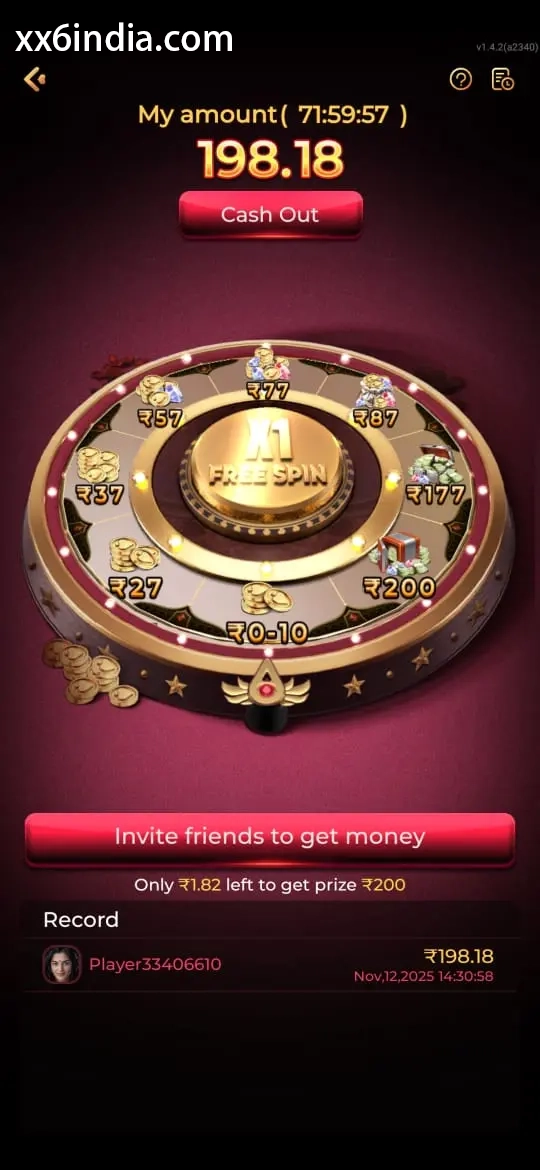
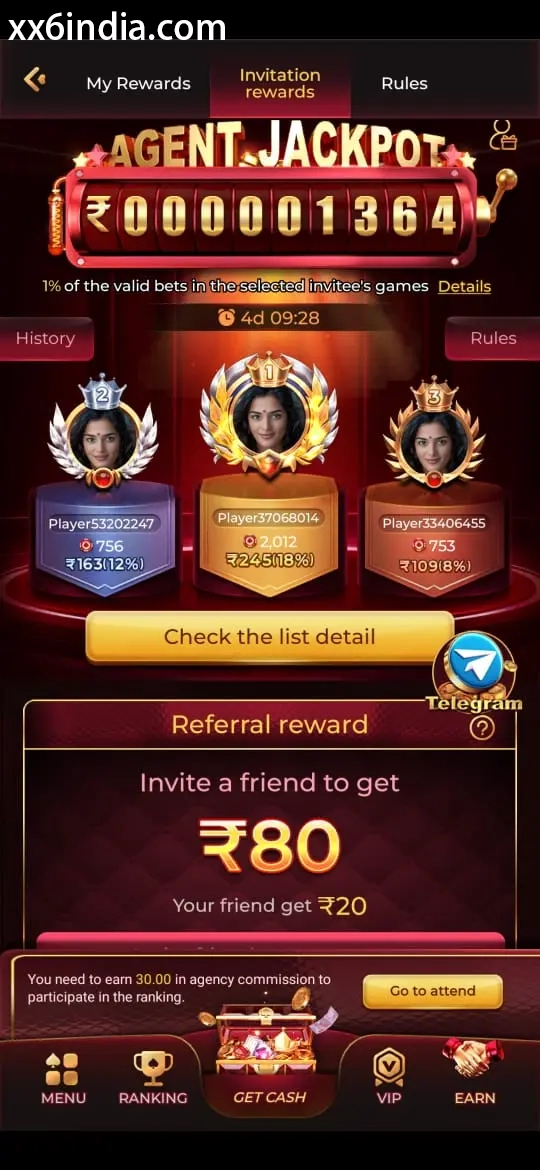
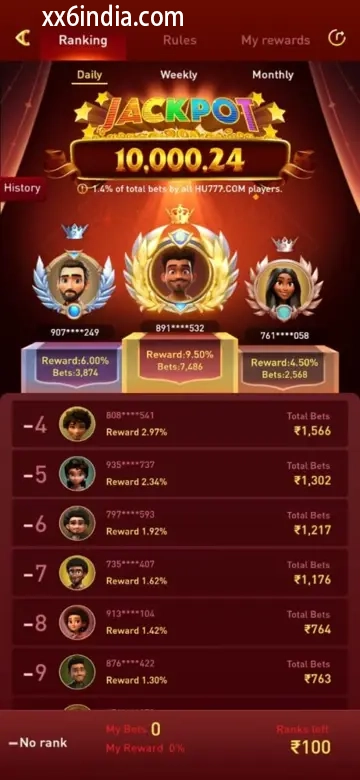
Example XX6 Game Access and Loading Screens
Treat these images as layout references only; the current prompts and account directions on your phone should always take priority.
Useful next guides
Choose the guide that matches your next task
Sign-in and recovery steps
Use this page when an OTP, password check or sign-in error is blocking account access.
Android setup checklist
Review the file source, Android permissions, phone compatibility and update steps in one place.
Guide to game categories
Compare the available sections and their controls before opening a game on your phone.
Quick clarifications
What this page explains
What separates game access from an APK download?
Downloading the APK installs the Android access point, whereas game access begins when an individual title is opened and loaded in the ready app or browser.
What commonly slows game loading?
A poor connection, low storage, aggressive battery saving, old cache or a network switch during loading can all cause delays.
Can XX6 games be used through a phone browser?
A browser route may work, but its behaviour can vary from the app according to the phone, network quality and account state.
What should I do before launching a game?
Before launch, stay on a steady network, close heavy background apps, check that sign-in works and read the on-screen game labels.